





Featured

Deploy OpenClaw in 60 seconds — 20% off logoDeploy OpenClaw in 60 seconds — 20% off

Launch OpenClaw on Hostinger in about 60 seconds and keep your agent live 24/7. Our referral link gives you 20% off, no coupon code needed.

Launch on Hostinger
Run your Hermes agent on Hostinger, fully managed logoRun your Hermes agent on Hostinger, fully managed

Launch Hermes on Hostinger in one click, fully managed, no VPS knowledge needed. Use code ZACAARON10 for 10% off.

Launch on Hostinger
Crawl and scrape any site into clean data, 10% off logoCrawl and scrape any site into clean data, 10% off

Firecrawl crawls and scrapes any site into clean markdown for your agent. Get 1,000 free credits, and new users get 10% off their first purchase.

Try Firecrawl free
Your own AI agent, running 24/7 with QwikClaw logoYour own AI agent, running 24/7 with QwikClaw

QwikClaw sets up and runs an always-on OpenClaw agent for you. One click, no config files, no server setup.

Deploy now
One API to scrape, enrich, and extract the internet. logoOne API to scrape, enrich, and extract the internet.

Context.dev gives your agents a single API to scrape, enrich, and extract live web data — no proxies, no parsers, no maintenance.

Start building free
SetupClaw: done-for-you OpenClaw for founders & exec teams logoSetupClaw: done-for-you OpenClaw for founders & exec teams

White-glove OpenClaw for founders and exec teams (4–50+ employees): we install, harden, integrate your tools, and maintain it — secured from day one.

Get it set up for you
SEO data APIs for your agent, $1 free credit logoSEO data APIs for your agent, $1 free credit

DataForSEO gives your agent live access to SERP results, keyword data, backlinks, and on-page SEO data through one API. New accounts get a $1 credit, good for up to 20,000 keyword or backlink lookups.

Try DataForSEO free
Reach 47,000+ AI builders

A flat monthly placement in front of developers actively installing AI tools. No lock-in, cancel anytime.

Advertise here

Works with

Claude CodeClaude DesktopCursorVS CodeClineCodex CLIOpenClaw+ any MCP client

Install to Claude Code

This server doesn't publish a one-line install command. Follow the setup in the source repository.

Summary

Simple MCP Server to enable a human-in-the-loop workflow in tools like Cline and Cursor.

README.md

User Feedback MCP

Simple MCP Server to enable a human-in-the-loop workflow in tools like Cline and Cursor. This is especially useful for developing desktop applications that require complex user interactions to test.

!Screenshot showing the feedback UI

Prompt Engineering

For the best results, add the following to your custom prompt:

Before completing the task, use the user_feedback MCP tool to ask the user for feedback.

This will ensure Cline uses this MCP server to request user feedback before marking the task as completed.

.user-feedback.json

Hitting _Save Configuration_ creates a .user-feedback.json file in your project directory that looks like this:

{
  "command": "npm run dev",
  "execute_automatically": false
}

This configuration will be loaded on startup and if execute_automatically is enabled your command will be instantly executed (you will not have to click _Run_ manually). For multi-step commands you should use something like Task.

Installation (Cline)

To install the MCP server in Cline, follow these steps (see screenshot):

!Screenshot showing installation steps

  1. Install uv globally:
  • Windows: pip install uv
  • Linux/Mac: curl -LsSf https://astral.sh/uv/install.sh | sh
  1. Clone this repository, for this example C:\MCP\user-feedback-mcp.
  2. Navigate to the Cline _MCP Servers_ configuration (see screenshot).
  3. Click on the _Installed_ tab.
  4. Click on _Configure MCP Servers_, which will open cline_mcp_settings.json.
  5. Add the user-feedback-mcp server:
{
  "mcpServers": {
    "github.com/mrexodia/user-feedback-mcp": {
      "command": "uv",
      "args": [
        "--directory",
        "c:\\MCP\\user-feedback-mcp",
        "run",
        "server.py"
      ],
      "timeout": 600,
      "autoApprove": [
        "user_feedback"
      ]
    }
  }
}

Development

uv run fastmcp dev server.py

This will open a web interface at http://localhost:5173 and allow you to interact with the MCP tools for testing.

Available tools

<use_mcp_tool>
<server_name>github.com/mrexodia/user-feedback-mcp</server_name>
<tool_name>user_feedback</tool_name>
<arguments>
{
  "project_directory": "C:/MCP/user-feedback-mcp",
  "summary": "I've implemented the changes you requested."
}
</arguments>
</use_mcp_tool>

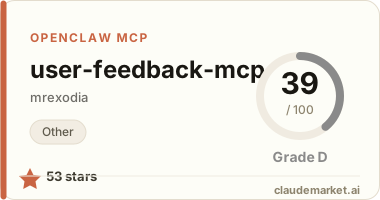
See related servers & alternatives →

Related MCP servers

Browse all →

Related guides

Hand-picked reading to help you choose and use Other servers.